Position and orientation
Create up to eight docks. Place each one freely, or attach it to the top, bottom, left or right edge. At an edge, choose its alignment and distance; switch between horizontal and vertical layouts.
FOR THE AROS DESKTOP
Dockbar supports up to eight independently configured docks, drag-created application groups, drawer panels and AmigaDOS commands. Its widget API lets you add your own tools or integrate another application.
Open source · PC & Raspberry Pi · Version 0.6.2
 Shell
 Browser
 Projects10:24
Illustration of a grouped workspace · Original Dockbar icons
MULTIPLE DOCKS
Each dock has its own position, orientation, contents and appearance. You can change one without changing the others.
10:24Layout illustration using original Dockbar icons.
GROUPS / RELATED TOOLS
A group holds several shortcuts in a single dock item. Click it to open an icon grid.
Create groups by dragging, then reorder their contents or move shortcuts between groups and docks.
Hold one launcher over another to form a group.
Drop shortcuts into the panel, or hold over the group to open it.
Click an item in the grid to launch it, or drag it back onto the dock.
Groups open as icon grids.DRAWERS / FILES / LAUNCHERS
Drawer panels display the contents of a directory directly beside the dock.
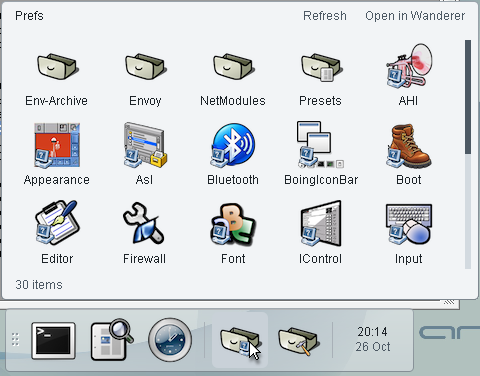
Open subdrawers and launch files from the panel, or continue in Wanderer. The panel follows changes in the directory.
Set a launcher’s On drop option to Open the files to pass dropped documents to that application.
Drop an application from Wanderer to pin it. Shift-click its shortcut to edit the name, icon or launch options. Removing the shortcut leaves the original file untouched.
COMMANDS / SCRIPTS / FILE ACTIONS
Command items run AmigaDOS command lines or script files, with a working directory and optional Shell output.
Add a command line such as Dir SYS:Prefs ALL, or select a script file to run with Execute. Set its working directory, and choose whether to open a Shell window so you can read its output and errors.
A launcher can add dropped items as shortcuts or open files in its application. A command can run with the files instead. Set On drop in the item editor to choose the behaviour for that item.
EXAMPLE / LIST THE FILES YOU DROP
List {files}Place {files} once, as a separate word. Dockbar inserts the dropped paths and quotes each one, including names with spaces. A script can accept multiple files with .KEY FILES/M.
APPEARANCE / CONTENT / BEHAVIOUR
Choose the background style and how items are displayed. Appearance settings can be shared across docks or overridden individually.
10:24BACKGROUND STYLES / FROSTED GLASS
Frosted glass softens the captured desktop behind the bar. Wallpaper colours show through a blurred, tinted background, while icons and labels stay crisp.
In Preferences, set Background to Bar, choose a non-zero Transparency % and enable Frosted glass.
Frosted glass uses a captured desktop background. It is available when real window transparency is not active; it does not blur live windows behind the dock. The --no-compose option selects the capture path.
10:24A defined background in light or dark colours. Set transparency to zero for an opaque bar.
10:24Let the background show through. On systems with window composition, the system updates what is behind the dock.
10:24Display items without a background bar.
Background styles illustrated for this page, not application screenshots. Colours and the background update path depend on your settings and system.
Labels on hover, always visible, or hidden.
ShellProjectsNames below or beside your icons.
Plain text or individual button plates.
Presentation illustrations, not application screenshots.
Use native Amiga .info icons or choose your own SVG. Adjust icon size and spacing. Show icon labels always, only on hover, or not at all. An item can override the dock’s presentation mode.
Choose light, dark or automatic colours and set the corner radius. Each dock can inherit shared defaults or use its own settings.
Choose Lift, Magnify or no hover effect for icons on a bar. Select system or smooth text rendering.
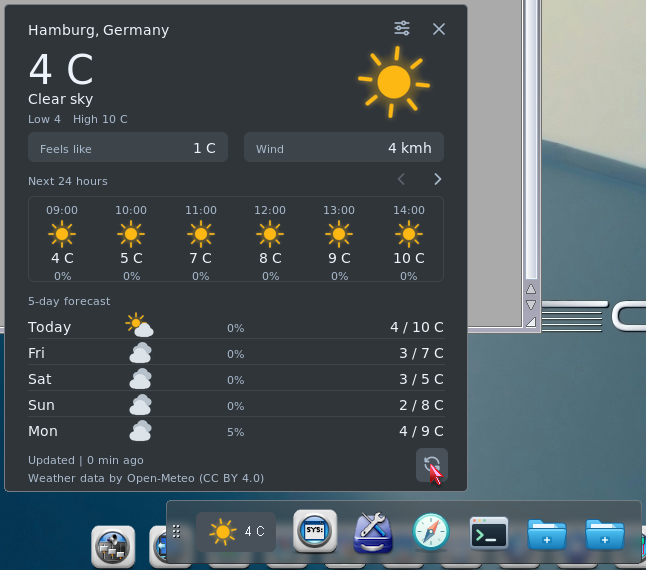
Weather on AROS One · Screenshot from Dockbar 0.5.2
INCLUDED WIDGET / WEATHER
The included Weather widget shows current conditions, an hourly forecast and a five-day outlook.
Each instance has its own location and units, so several cities can be displayed on the same desktop.
Forecast data by Open-Meteo · CC BY 4.0
Requires a working TCP/IP connection and a correct system clock.
PREFERENCES / SAVING / STARTUP
Preferences stores dock layouts, appearance settings and widget identities in the saved configuration.
Preferences separates placement, content, appearance and behaviour. Apply lets you try changes, Save keeps them, and Cancel restores the saved layout.
Enable Start with Wanderer to create a startup icon pointing to this installation. Keep Dockbar in its own drawer with its assets and widgets; the program does not need to be copied into WBStartup.
Removing a shortcut leaves its target file in place. Removing a widget instance also removes that instance’s saved settings and cache once its provider has stopped.
PC / RASPBERRY PI
Packages for mainline x86_64, ABIv11 x86_64 and Raspberry Pi aarch64. All include SVG icons and Weather.
Unpack the archive, keep the complete drawer together and open Dockbar. See the included ReadMe for setup and system startup.
Release notes & system requirements ↗