Jumpstart, a keyboard
launcher for AROS

Press CtrlAltSpace, type a few letters and press Return to open a program. If you already have a document open, type its window title to switch back to it.

For ABIv11 distributions, mainline AROS on PC and the Raspberry Pi. Version 0.8.0, open source (MIT).

Choose a sample query

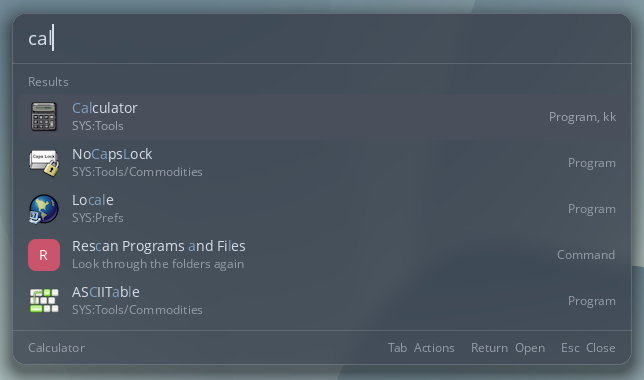
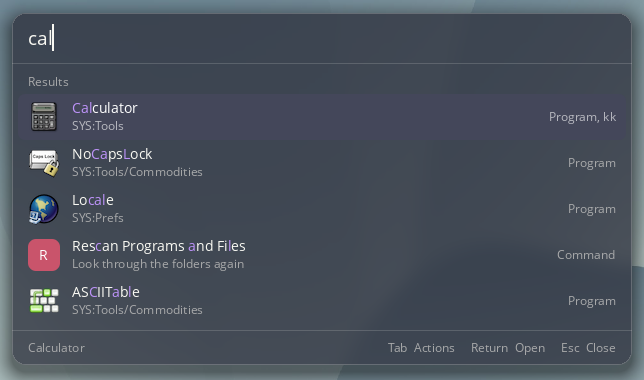
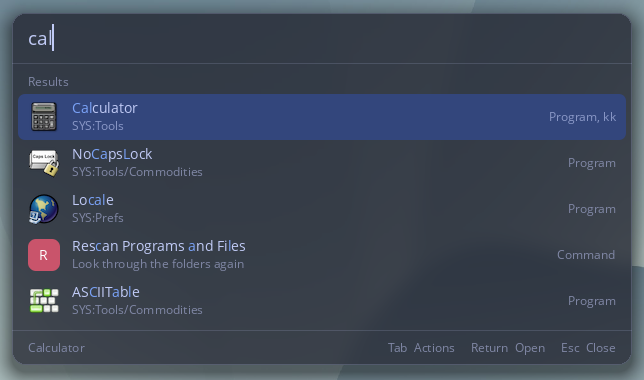
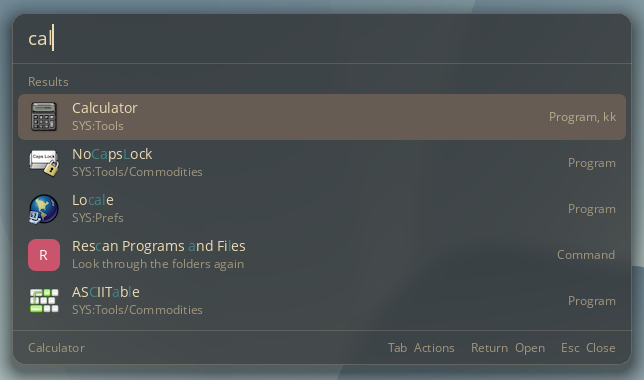
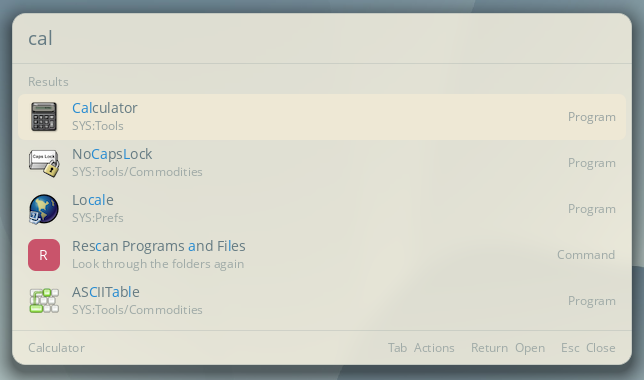
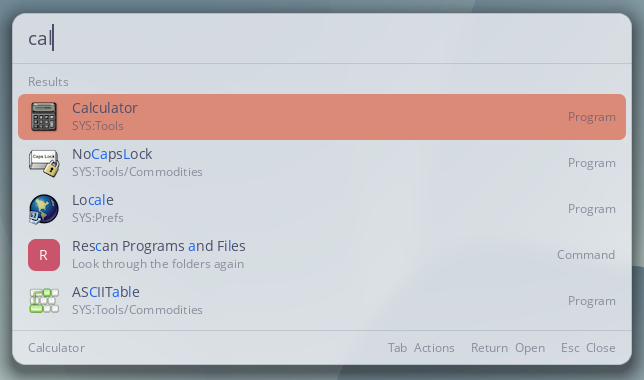
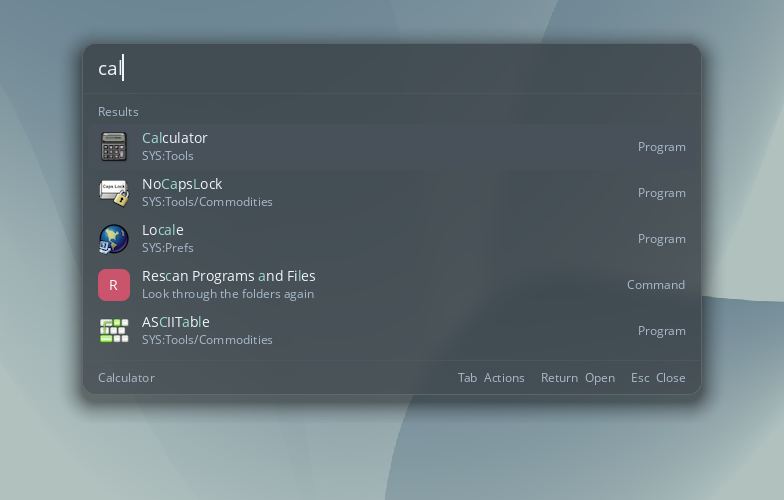
The launcher panel on an AROS desktop showing the results for the selected query
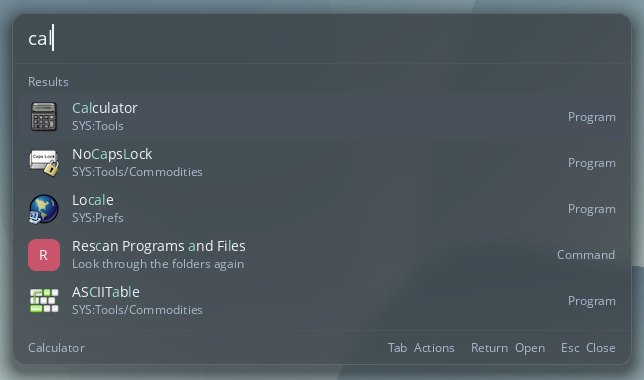
Three letters find Calculator. The other rows are programs and commands that contain the same letters. Version 0.7.1 on AROS x86_64 ABIv11 under QEMU.

Find a program, window or file

Try wc for WordCraft. The letters can be anywhere in the name, and you can leave out accents or use lowercase. Programs you open often move up the list.

Open windows appear under their titles. Pressing Return brings the chosen one to the front.

Files and drawers come from folders you pick in the settings. No folder is searched until you add one. You can leave drawers out, or names by pattern, for example #?.bak. The index is built in the background and kept between starts.

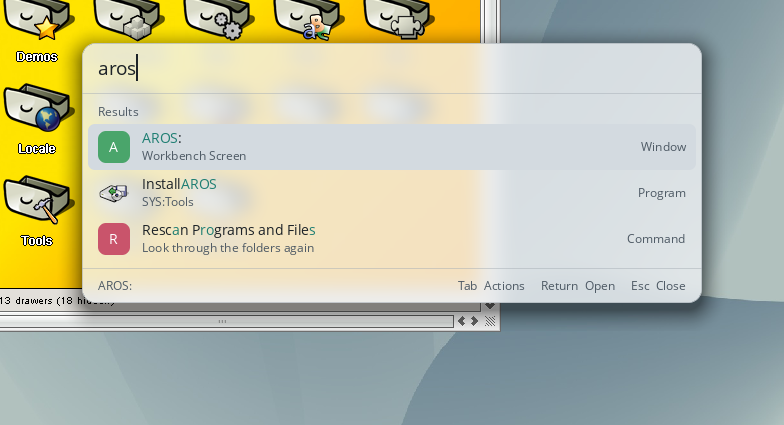
The panel in its light colours over an open AROS drawer window, listing the window AROS:, the program InstallAROS and a command
The window AROS: is the first result. Light colours, frosted glass over the drawer behind.

Calculations, conversions and weather

Type a calculation or a question in words and the answer is the first result. Return copies it to the clipboard.

  • sqrt(2)1.41421356237
  • 0x1f+132
  • 10 km to mi6.21371 mi
  • 72 f in c22.2222 °C
  • 20% off 8064
  • 15:30 warsaw to new york09:30 New York
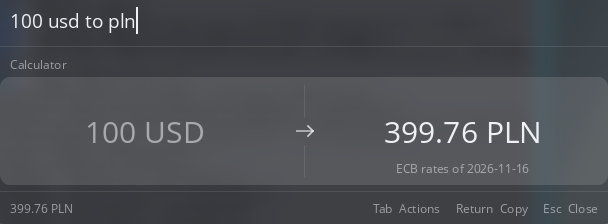
  • 100 usd to plnthe day's rate
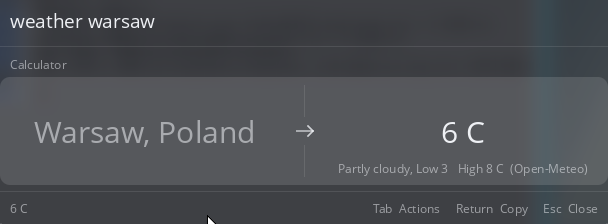
  • weather warsawtemperature and sky
The panel answering 100 usd to pln with 399.76 PLN and the date of the rates
Rates are the European Central Bank's daily reference rates. The date is shown under the answer.
The panel answering weather warsaw with 6 C, partly cloudy, and the day's low and high
Weather by Open-Meteo. Both pictures: an earlier build on mainline AROS x86_64.

Rates are fetched over HTTPS at most twice a day and kept for when there is no network. The request is for one public file, so nothing about you or what you typed leaves the computer. A weather question sends the city name to Open-Meteo and nothing else.

Actions and shortcuts

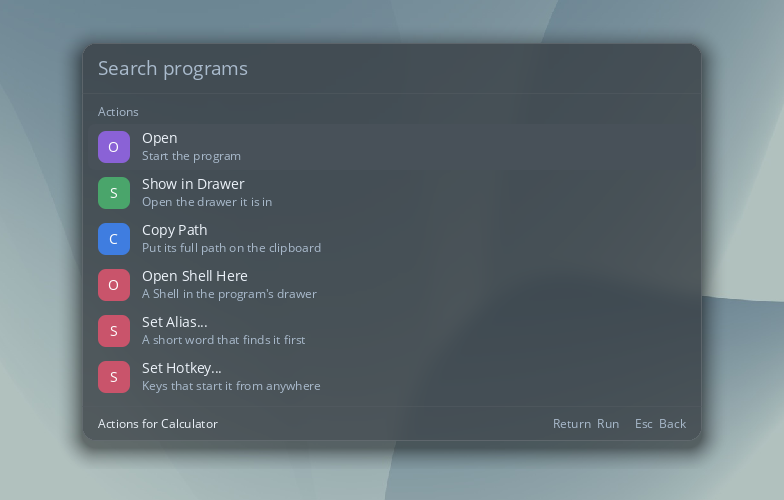
Select a file and press Tab to see its actions. You can copy the path, show the file in its drawer or open a Shell there.

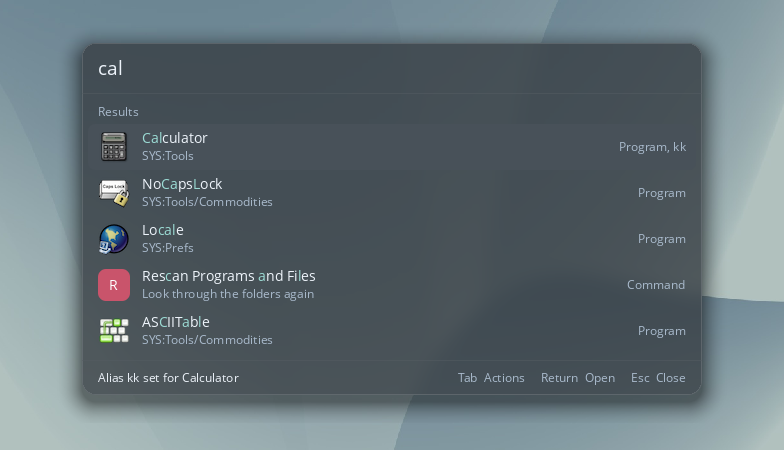
Two of the actions give a program a shortcut of its own. An alias is a short word; typed whole, it puts that program first. A hotkey starts the program from anywhere without opening the panel. You write it the way commodities do: ctrl alt w, lalt f5, ramiga t.

"Aliases and Hotkeys" lists everything you have set, and Return on a line changes or removes it.

The actions for Calculator: Open, Show in Drawer, Copy Path, Open Shell Here, Set Alias and Set Hotkey
The actions for Calculator.
Results for cal with the alias kk shown on the Calculator row
After setting the alias kk, the row shows it.
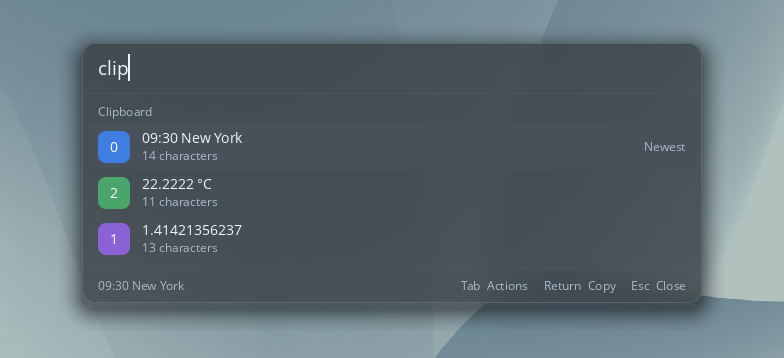
Clipboard history with three entries, the newest marked
Three copied answers, newest first.

Clipboard history

Type clip to see your last 50 clipboard entries. Keep typing to find a particular piece of text. Return puts one back on the clipboard, Tab deletes an entry or all of them. Jumpstart keeps the history in memory and clears it when you quit.
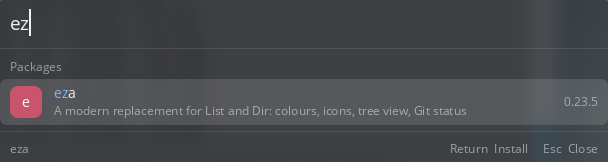
The panel listing the package eza with its description and version, with Return Install in the footer
A package that is not installed yet. Earlier build, mainline AROS x86_64.

Packages from apkg

With apkg installed, you can search for packages by name or description. Results show packages you haven’t installed yet. Press Return to review the choice, then Return again to start installation in a console window.

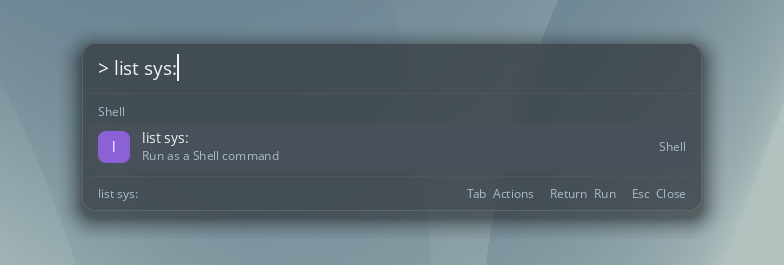
The panel offering to run list sys: as a Shell command
A Shell command typed into the panel.

Shell commands and the system

Start the line with > and the rest runs as a Shell command in a console of its own. "Restart Computer" and "Shut Down Computer" are found like programs and ask for a second Return before they act.

Dockbar widgets

Currency answers and the weather come from widgets, small packages in the format Dockbar uses for its tiles and cards.

A widget is a drawer with a manifest, a description of its settings, a views file and a provider program. The provider fetches the data and writes a snapshot of named fields and rows. Each host shows that snapshot its own way: Dockbar draws a tile and a card, the launcher puts the same numbers into an answer.

The widget describes its card in views.json. It lists blocks such as text, trend, icon, row and list, and Dockbar lays them out. A new widget does not need a new version of the host.

"expanded": [
  { "text": "heading" },
  { "text": "basis", "style": "muted" },
  { "spacer": 10 },
  { "list": "top", "max": 5, "row": [
    { "text": "label" },
    { "trend": "plot", "text": "detail", "align": "right" },
    { "text": "value", "align": "right" }
  ] }
]

Currency comes with both programs. Weather comes with Dockbar, and the launcher uses it when Dockbar is installed. For now the launcher reads these two widgets; reading any installed widget is planned. You can write a widget for Dockbar today: the format is documented.

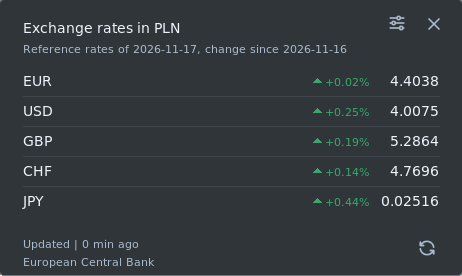
Dockbar's Currency card: exchange rates in PLN for EUR, USD, GBP, CHF and JPY, each with its change since the previous day
The card that the block list above describes, in Dockbar 0.7.0.
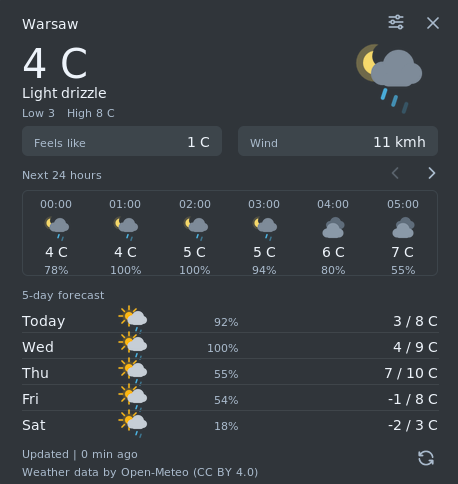
Dockbar's Weather card for Warsaw with current conditions, the next hours and a five-day forecast
Dockbar's Weather widget. The launcher's weather warsaw asks the same provider.

Limpet colour themes

The panel reads themes in the format of Limpet, the AROS terminal, so you can use the same theme in both.

The panel in its own dark colours
Built in, dark
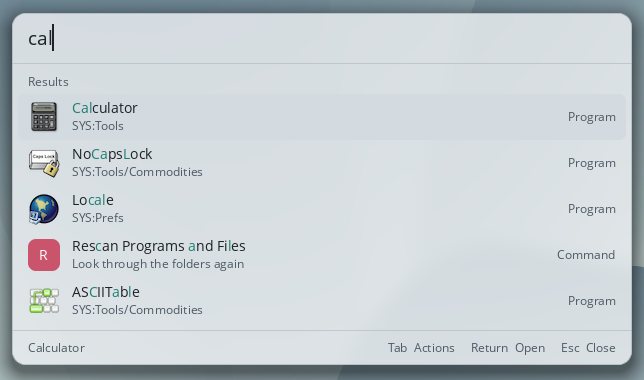
The panel in its own light colours
Built in, light
The panel in the Nord theme
Nord
The panel in the Dracula theme
Dracula
The panel in the Tokyo Night theme
Tokyo Night
The panel in the Gruvbox Dark theme
Gruvbox Dark
The panel in the Solarized Light theme
Solarized Light
The panel in the Catppuccin Latte theme
Catppuccin Latte

You do not need Limpet

Fifteen of Limpet's themes come in the launcher's Themes drawer. If Limpet is installed, the themes in its own drawer are found by name as well. A theme file of your own works too.

Dark and light from one theme

A theme is either dark or light. Choose the other variant and the launcher makes it: every colour keeps its hue and takes the mirrored lightness, and Jumpstart adjusts text colours for contrast.

The same look as Dockbar

Without a theme, the launcher uses the dark and light colours Dockbar has, so the two look alike on one desktop. Compact rows and the frosted glass behind the panel are switches in the settings.

ARexx commands

The launcher has a public port, JUMPSTART, with the commands SHOW, HIDE, TOGGLE, RESCAN, VERSION, QUIT and HELP. A script can open the panel with a query already typed:

address JUMPSTART 'SHOW calc'

To send a command from Jumpstart, type rx and a space, choose one of the public ports, then type the command. Return sends it and the answer appears under the row.

rx JUMPSTART VERSION

Downloads

Version 0.8.0 is the first public release. With apkg, one command installs it:

apkg install jumpstart

Starting it

Unpack the archive anywhere and double-click Jumpstart. It runs in the background. Open it with CtrlAltSpace. The first start from its icon also sets it up to start with the system, which you can switch off in its settings. The hotkey is the CX_POPKEY ToolType of the icon.

What it needs

TrueType fonts in FONTS:TrueType (DejaVu Sans, as installed with the system). Currency and weather need the network. Packages need apkg. Choose the archive for your architecture and ABI.